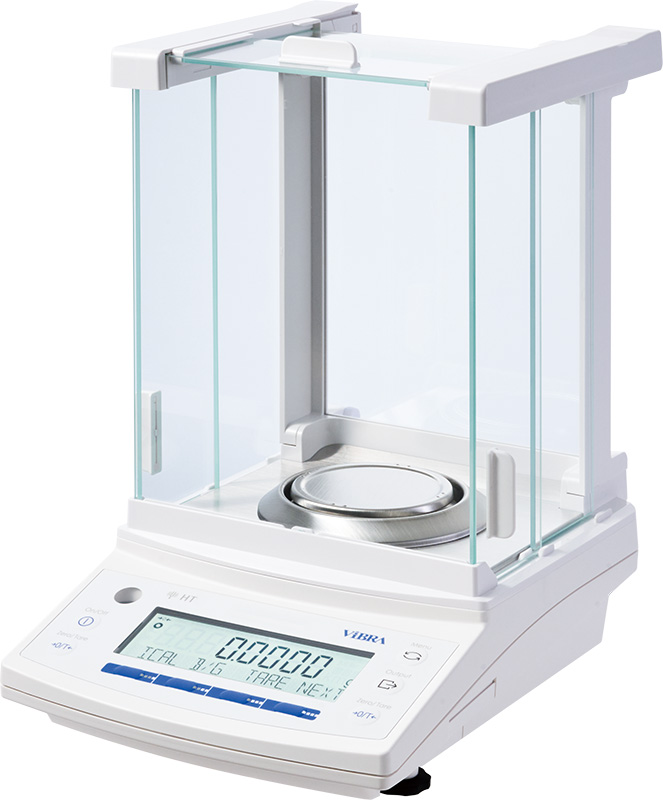
ViBRA HT Analytical Balances
0.1 mg analytical balances, 80–220 g, 3 s stabilisation — Shinko Denshi’s tuning-fork sensor, the only analytical balance of its kind.
View product

 Photos available on request
Reference: RTS Tools
Free Windows software that connects ViBRA balances to a PC to log weighing data, send commands and feed data into applications such as Excel.
Key specifications
ViBRA RTS Tools Data-Collecting Software
Request a quoteOverview
RTS Tools is a Windows application that connects ViBRA (SHINKO DENSHI) balances to a PC. It consists of two tools, RTSLogTool and RTSInputTool, and is available as a free download from the manufacturer's download center.
RTSLogTool collects data and sends commands, recording balance data to a PC in text or CSV format and saving it automatically. RTSInputTool records balance data directly into other applications such as Microsoft Excel, and the PC screen can also act as an external display of the balance.
It requires Windows 10, .NET Framework 4.6 or later and a display resolution of at least 1024 x 768.
Specifications
5 parameters
Records data to text or CSV files and sends commands to the balance.
Inserts balance data directly into applications such as Excel.
The PC screen can work as the balance's external display.
Available from the ViBRA download center.
Al-Shaker specifies the configuration, documents the system, and supports it across Jordan, the GCC, and MENA.
Consult
Plan
Supply
Install
Train
Support
0.1 mg analytical balances, 80–220 g, 3 s stabilisation — Shinko Denshi’s tuning-fork sensor, the only analytical balance of its kind.
View product
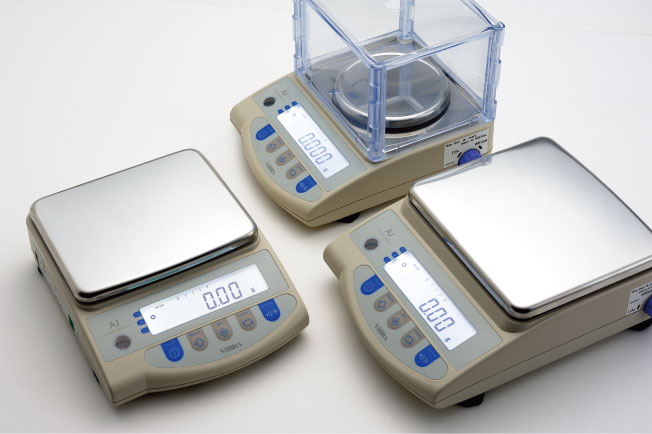
Tuning-fork precision balances from 220 g / 0.001 g to 12 kg / 0.1 g — compact chassis, optional internal calibration on AJH, OIML Class I/II.
View product
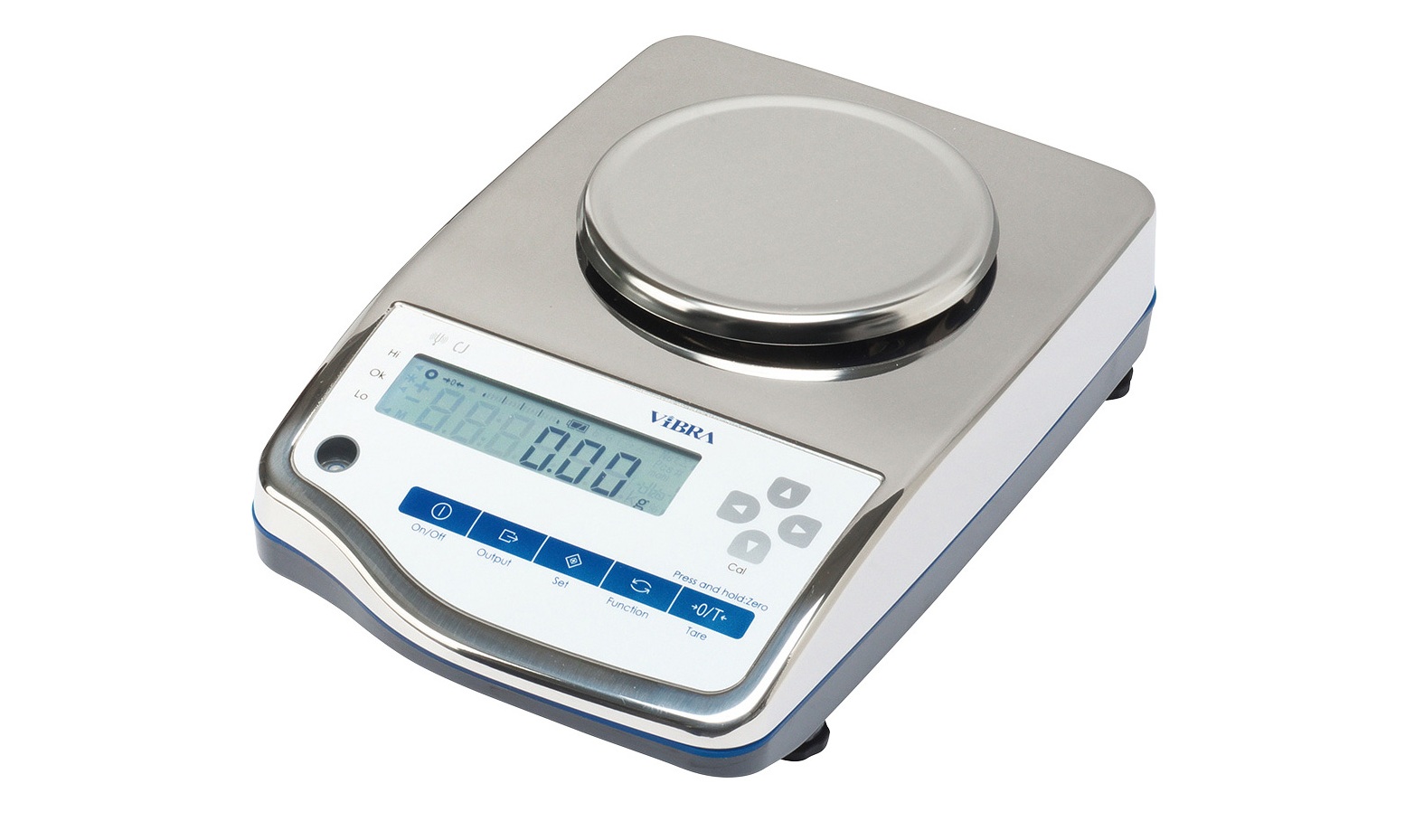
IP65 SUS304 precision balances, 620 g–15 kg, 0.01–1 g — washdown tuning-fork weighing for dust, mist, and splash.
View product
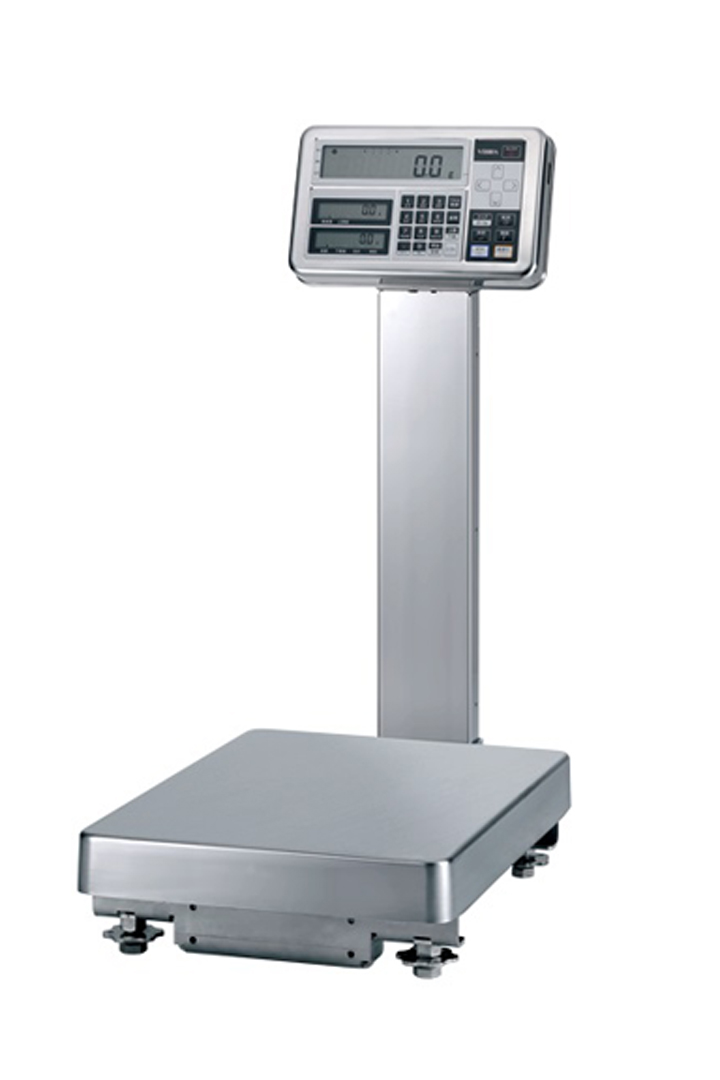
ATEX/IECEx II 1 G Ex ia IIB T4 Ga, IP65, 620 g–300 kg — tuning-fork weighing for Zone 0/1/2 gas, 0.001 g to 1 g.
View product
Talk to the technical team
Share the workflow, capacity, and compliance constraints. We respond with a recommended configuration, not a generic catalogue list.